
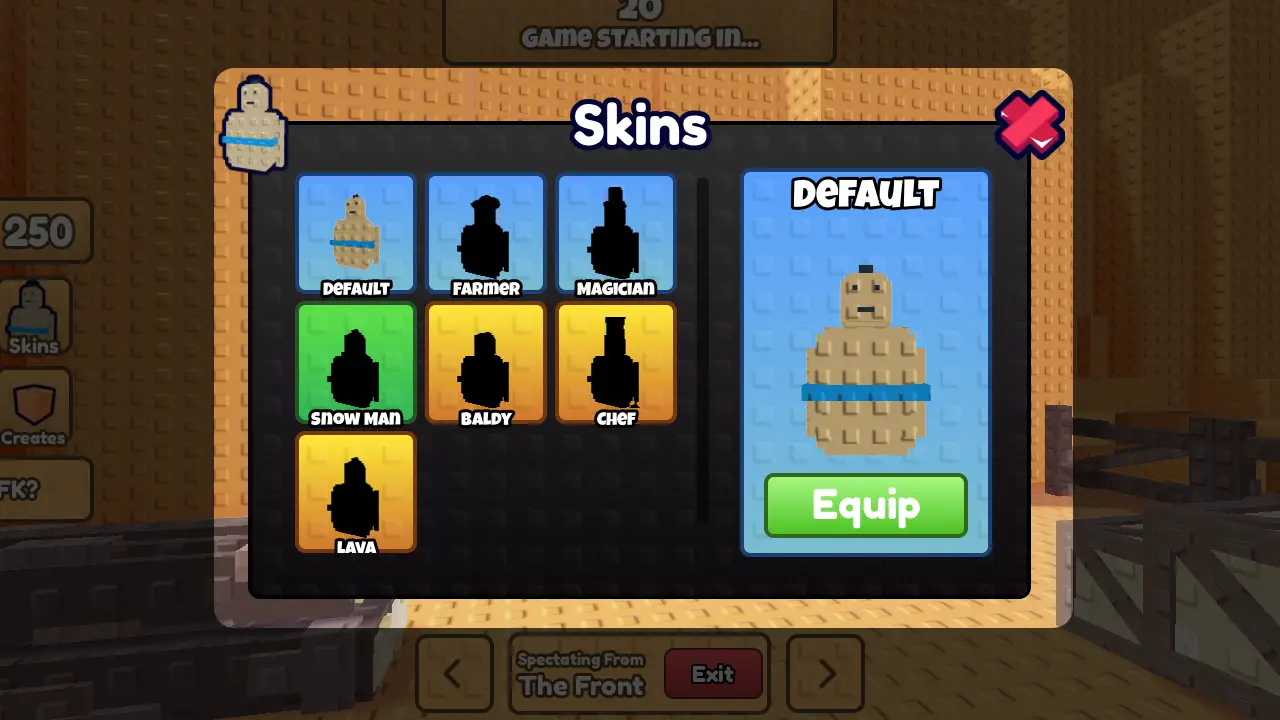
Have you ever seen those Roblox tutorials where the screen darkens, and only a small area highlights the button or interface element you need to press? This effect, known as a UI Spotlight, is a great way to guide players attention and make your tutorials or in-game interfaces more interactive.
Step-by-Step Guide to Creating a UI Spotlight in Roblox
Follow these simple steps to add a UI spotlight to your Roblox game:
- Insert a ScreenGui
First, go to StarterGui and add a ScreenGui. - Add a Frame
Inside your ScreenGui, insert a Frame. This frame will act as the area that highlights the interface element you want the player to focus on. - Resize the Frame
Adjust the size of the frame to match the button or part of the interface you want to spotlight. - Make the Frame Transparent
Set the frames Transparency property to1 - Add a UIStroke
Insert a UIStroke into your frame. Then:- Set Thickness to a very high value like
10000to cover the screen. - Adjust Transparency to 0.5 to create a semi-transparent dark overlay.
- Set Thickness to a very high value like
Optionally you can add a UICorner to the frame. This will round the edges of your spotlight.
You can also animate your ui by using our visual animator tool: https://animate.websitecode.dk/




Leave a Reply